| Bookmark Name | Actions |
|---|
Manage FAQs
Spotlight enables banks or credit unions to manage and update the Frequently Asked Questions (FAQs) that users may have while using the Retail Banking applications. Once added here, users can see them in the mobile and online banking apps immediately, without re-deploying the applications. Each question has an associated category which corresponds with the categories defined in the Help and FAQ sections of the retail banking applications.
Use the feature to manage frequently asked questions (FAQs) and their corresponding answers.
Menu path: Application Conent Management > FAQs
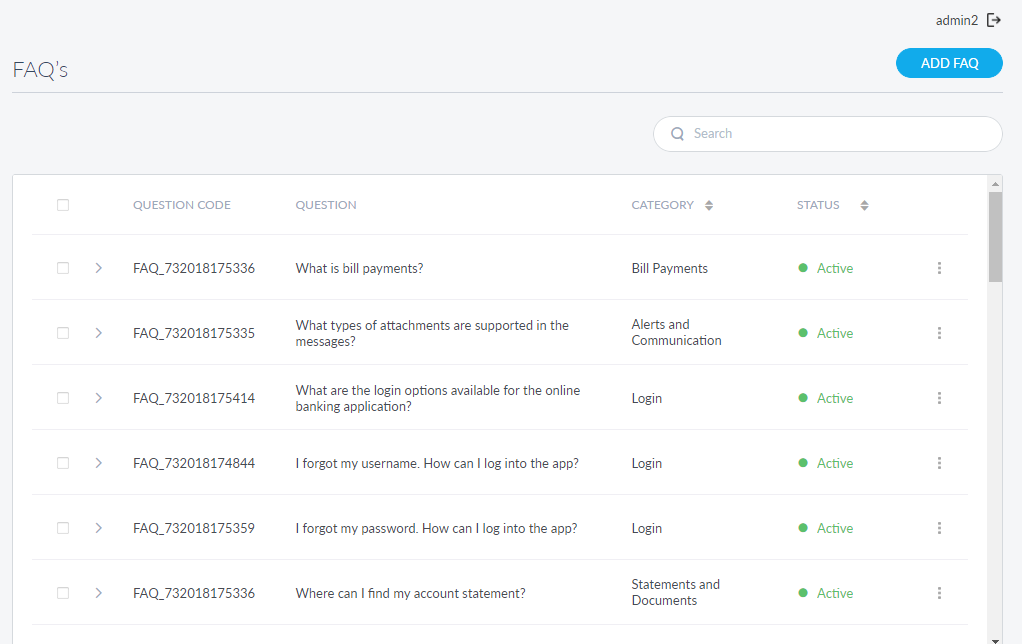
The app displays the FAQs screen with the list of existing FAQs. The FAQ list is represented as rows with the following details: question code, question, associated category, and status.
You can sort the list based on Status by using the sort  icon (
 denotes sorted by that column).
You can do the following on the FAQs screen:
- Add an FAQ
- View the answer of an FAQ
- Edit an FAQ
- Activate/Deactivate an FAQ
- Delete an FAQ
- Search for an FAQ
Add an FAQ
Use the feature to add a new FAQ.
Menu path: Application Content Management > FAQs > Add FAQ
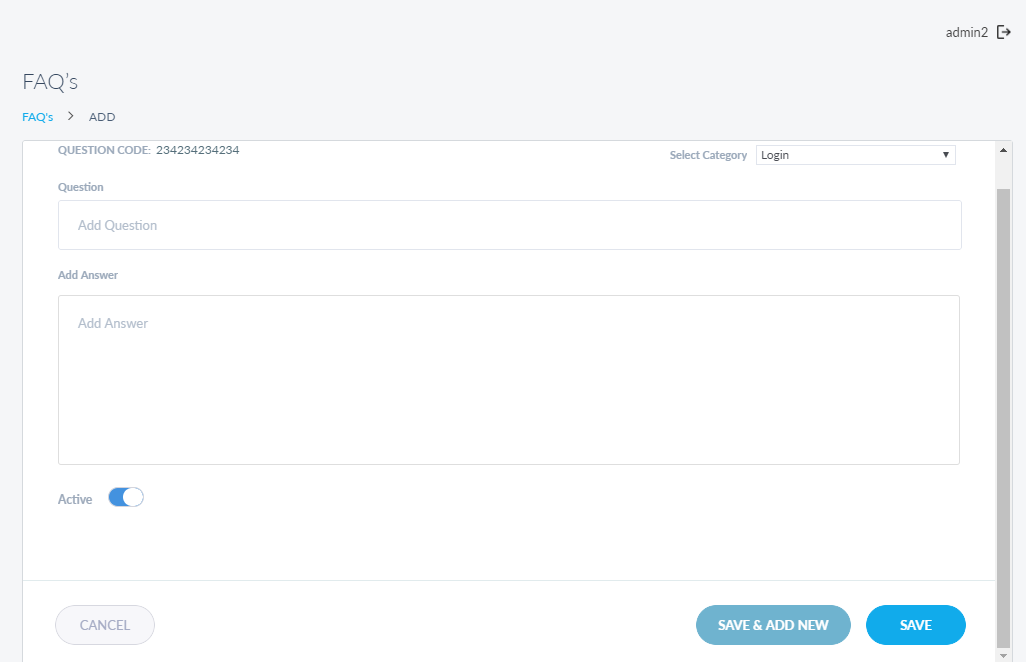
In the Add screen do the following:
- Select Category. Select a category from the list. These categories coincide with the categories defined in retail banking applications.
- Question. The question must be within 1000 characters.
- Answer. The answer must be within 4000 characters.
- Active or Inactive. The status of the FAQ. By default, it is set to active.
Click Save to save the FAQ and navigate back to the FAQs screen. The app saves the new FAQ and displays it as a row on the FAQs screen. Alternatively, click Save & Add New to save the FAQ and create a new one.
NOTE: You can cancel the process at any time. The changes are not saved.
View the Answer of an FAQ
Use the feature to view the saved answer of an FAQ.
Menu path: Application Content Management > FAQs
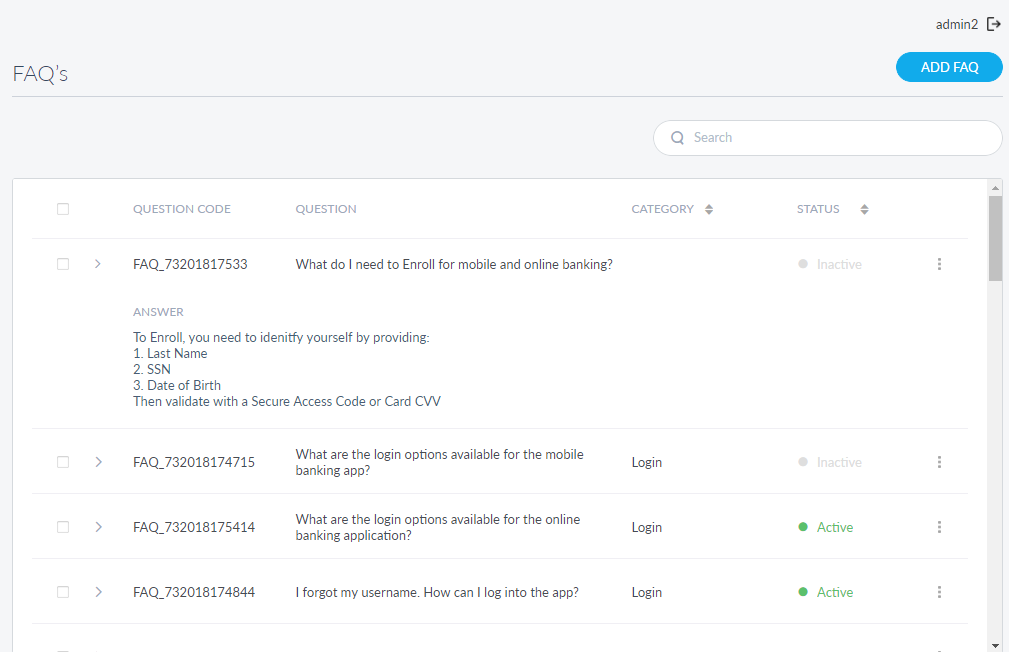
Click the > icon beside the required FAQ row and the app displays the answer for that FAQ.
Click the > icon again to minimize the row.
Edit an FAQ
Use the feature to edit an FAQ.
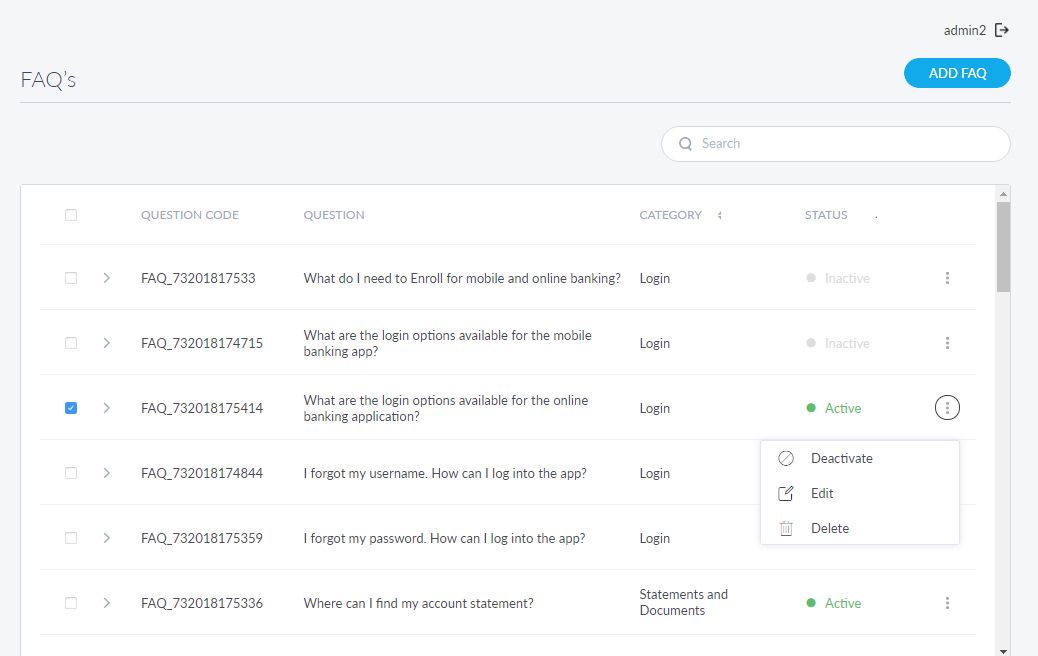
Menu path: Application Content Management > FAQs > Contextual menu  > Edit
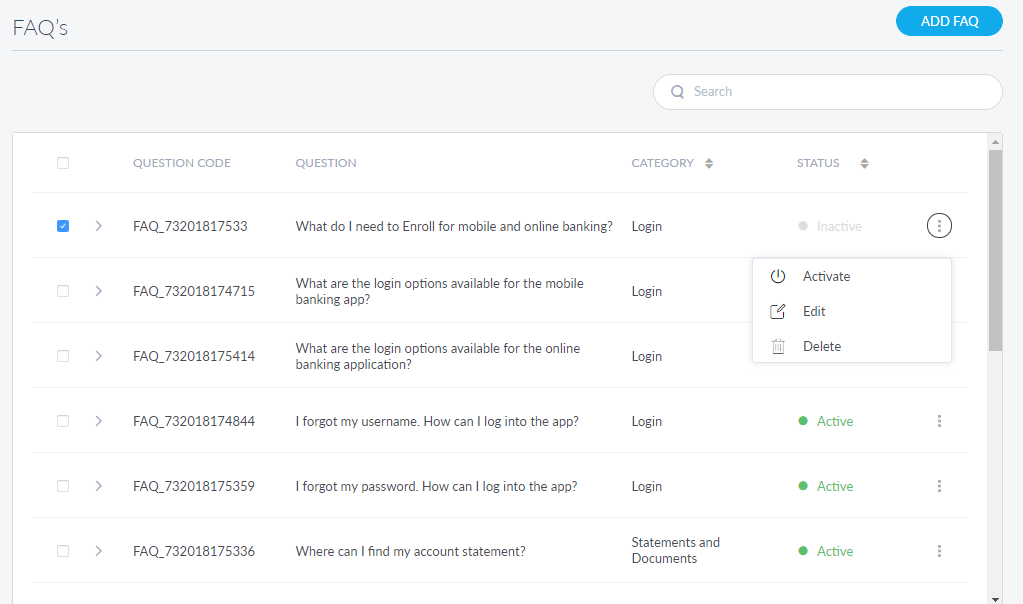
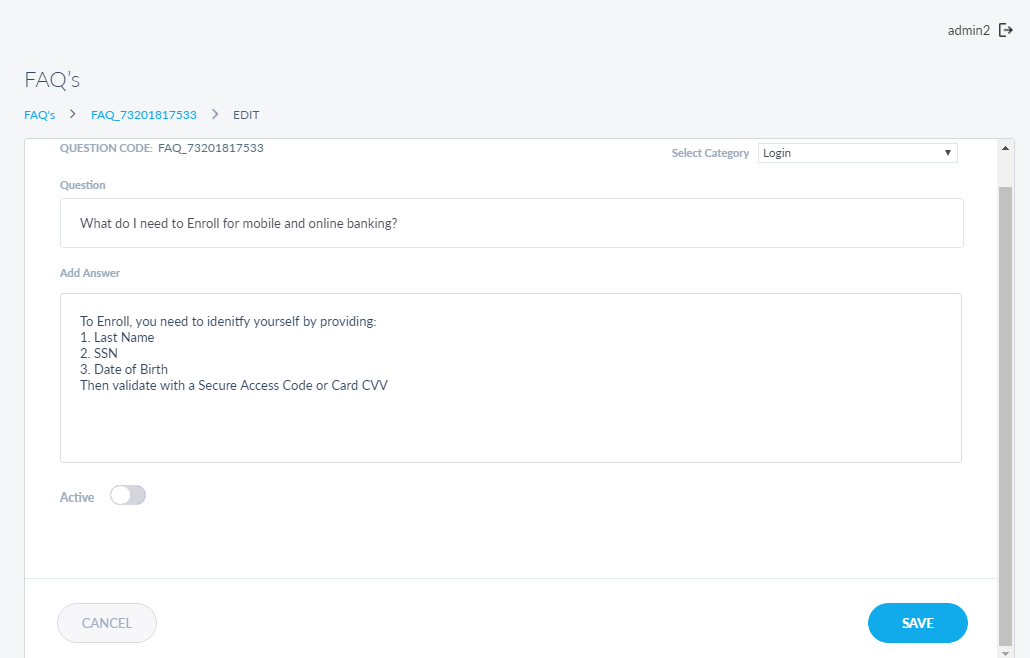
In the Edit screen make the changes as required:
- Question: The question must be within 1000 characters.
- Answer: The answer must be within 4000 characters.
- Activate or Deactivate the FAQ.
Click Save to update the FAQ and navigate back to the FAQs screen. The app saves the updated FAQ and displays it on the same row on the FAQs screen.
NOTE: You can click Cancel at any time to abort the process. The changes are not saved.
Activate/Deactivate an FAQ
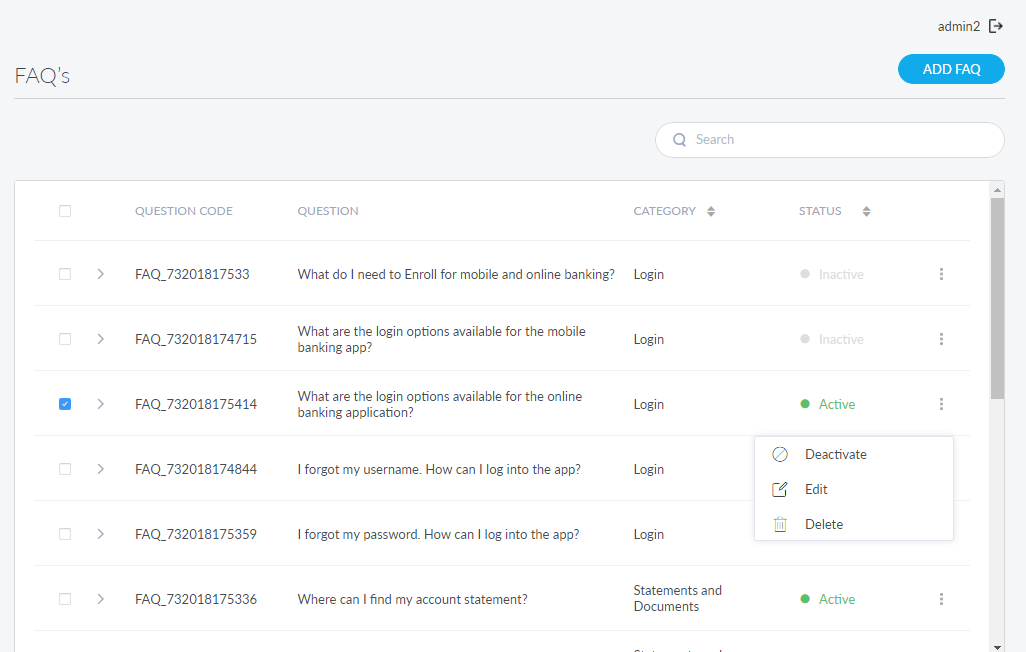
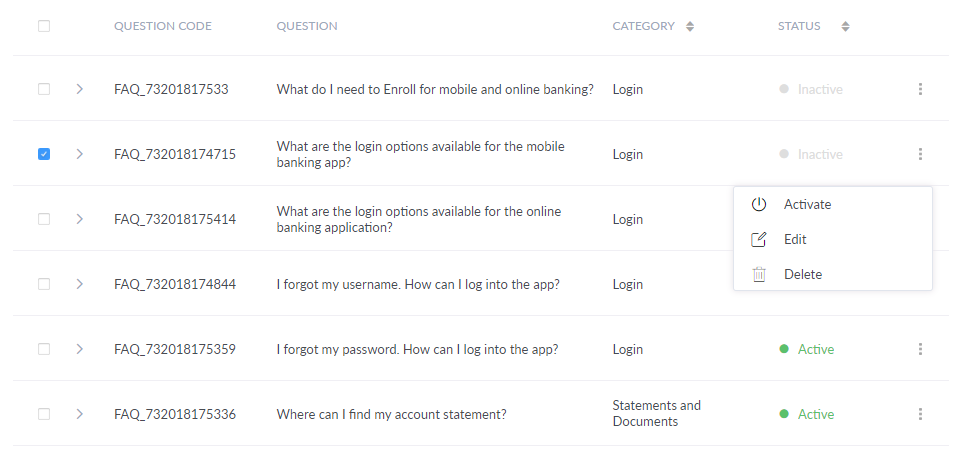
Use the feature to activate or deactivate an FAQ. Only those FAQs with status as Active are displayed on the relevant app when users search for them.
Menu path: Application Content Management > FAQs > Contextual menu > Activate/Deactivate
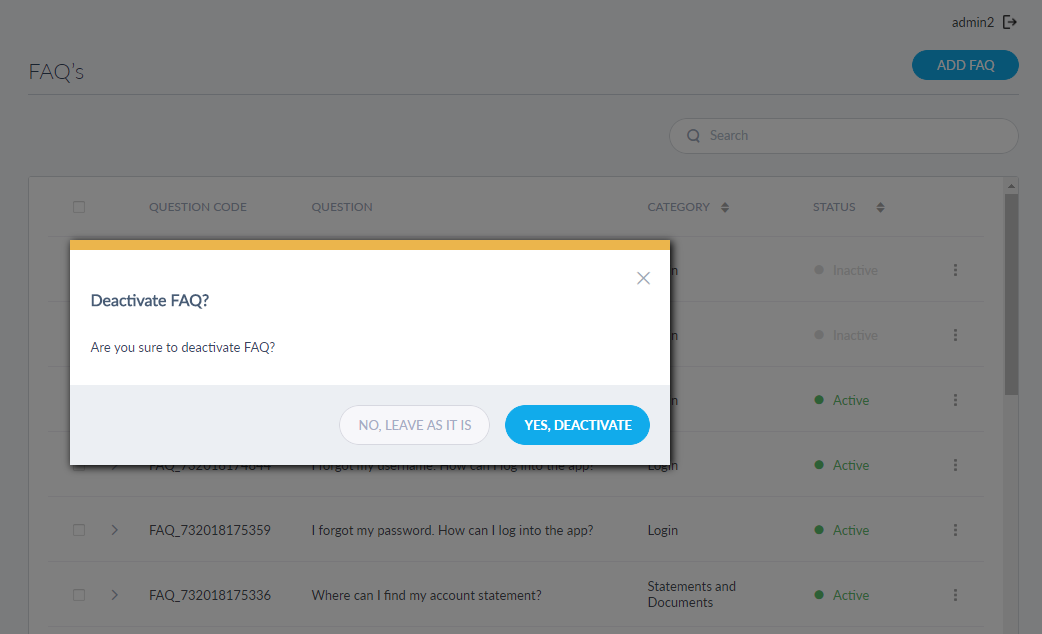
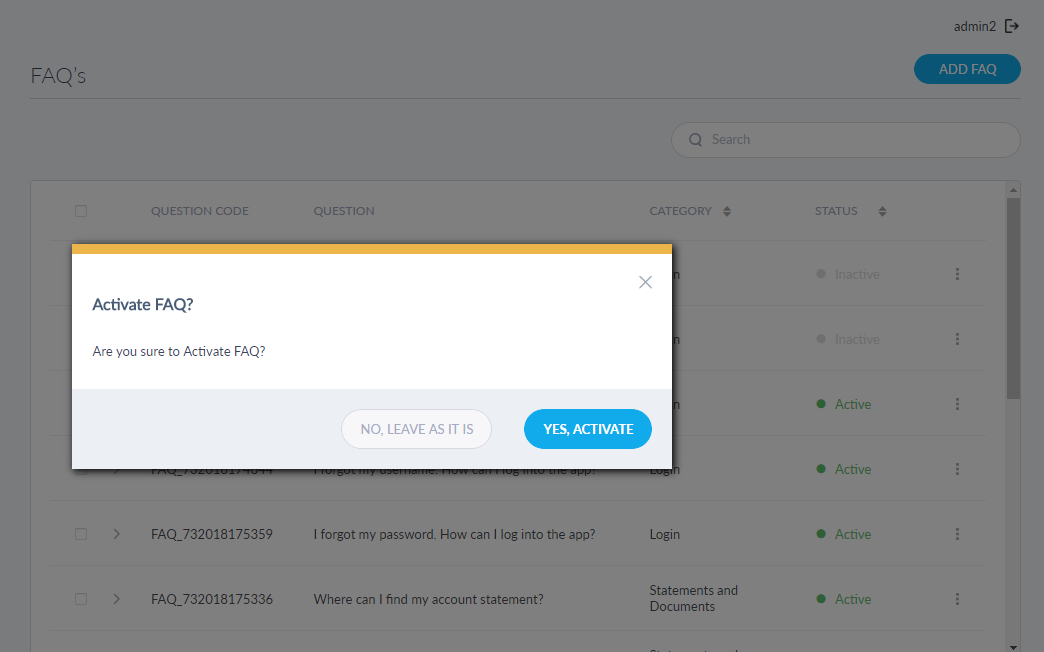
The app displays a pop-up asking if you want to activate/deactivate the FAQ. Click Yes, Activate/Deactivate. The app updates the status of the FAQ.
Click No, Leave as it is to cancel the changes.
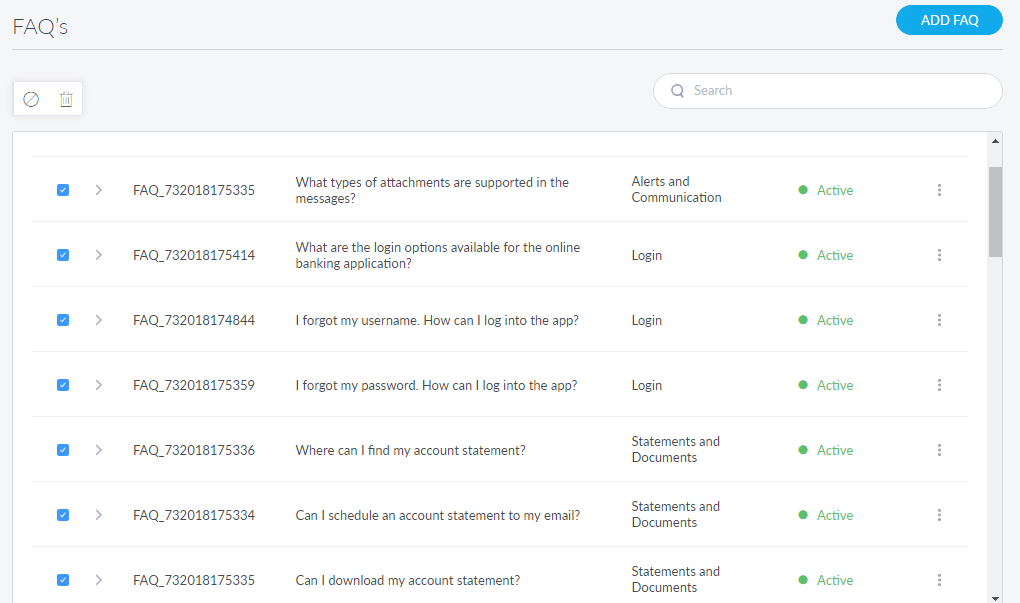
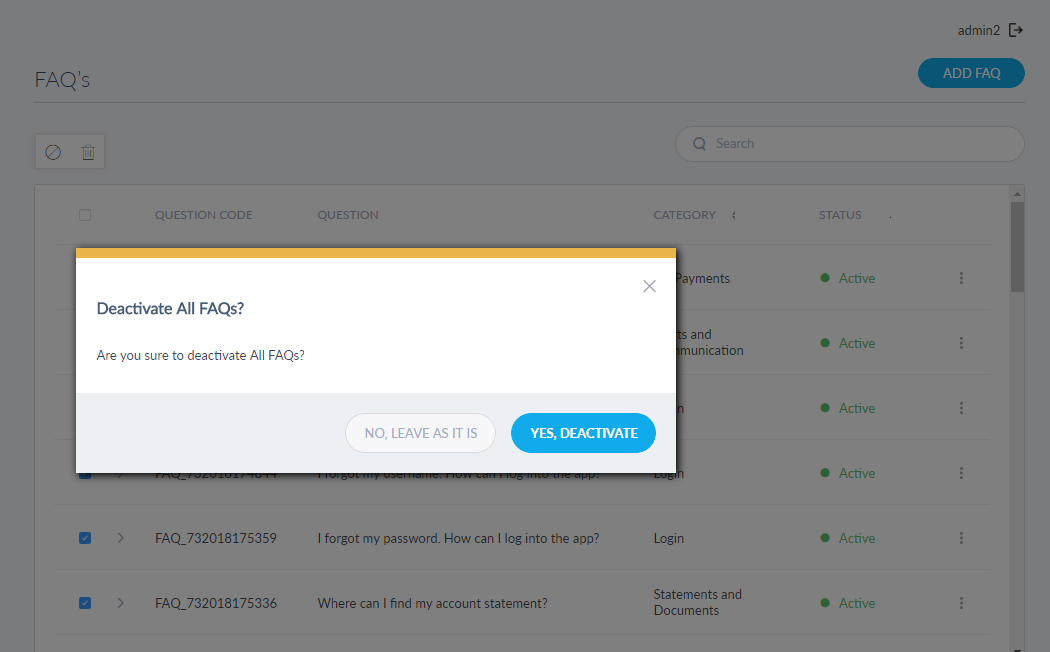
You can also select multiple, or even all, FAQs and activate or deactivate them.
Delete an FAQ
Use the feature to delete an FAQ.
Menu path: Application Content Management > FAQs > Contextual menu > Delete
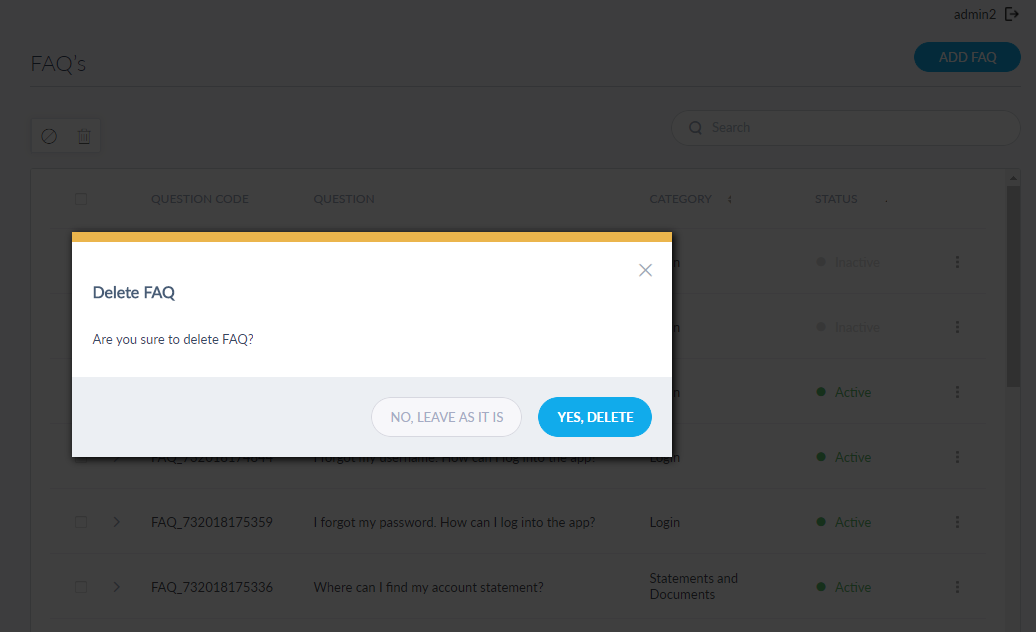
The app displays a window asking if you want to delete the FAQ. Click Yes, Delete. The app deletes the FAQ and removes it from the FAQs list.
Click No, Leave to cancel the process.
You can also select multiple, or even all, FAQs and delete them.
Search for an FAQ
Use the feature to search for an FAQ.
Menu path: Application Content Management > FAQs > Search
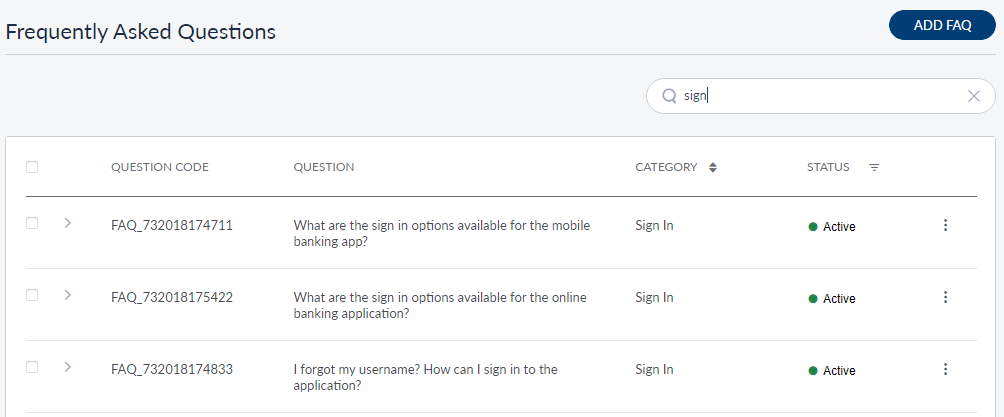
Type the required question code or a part of the question in the Search bar, and press Enter.
The app displays the search results with the list of FAQs. The FAQs list is represented as rows with the following details: question code, question, and status.
You can sort the list based on Status by using the sort icon ( denotes sorted by that column).
Add Bookmark
save your best linksView Bookmarks
Visit your best links BACK
BACK


Are you sure you want to log-off?